
Volume files in Finder
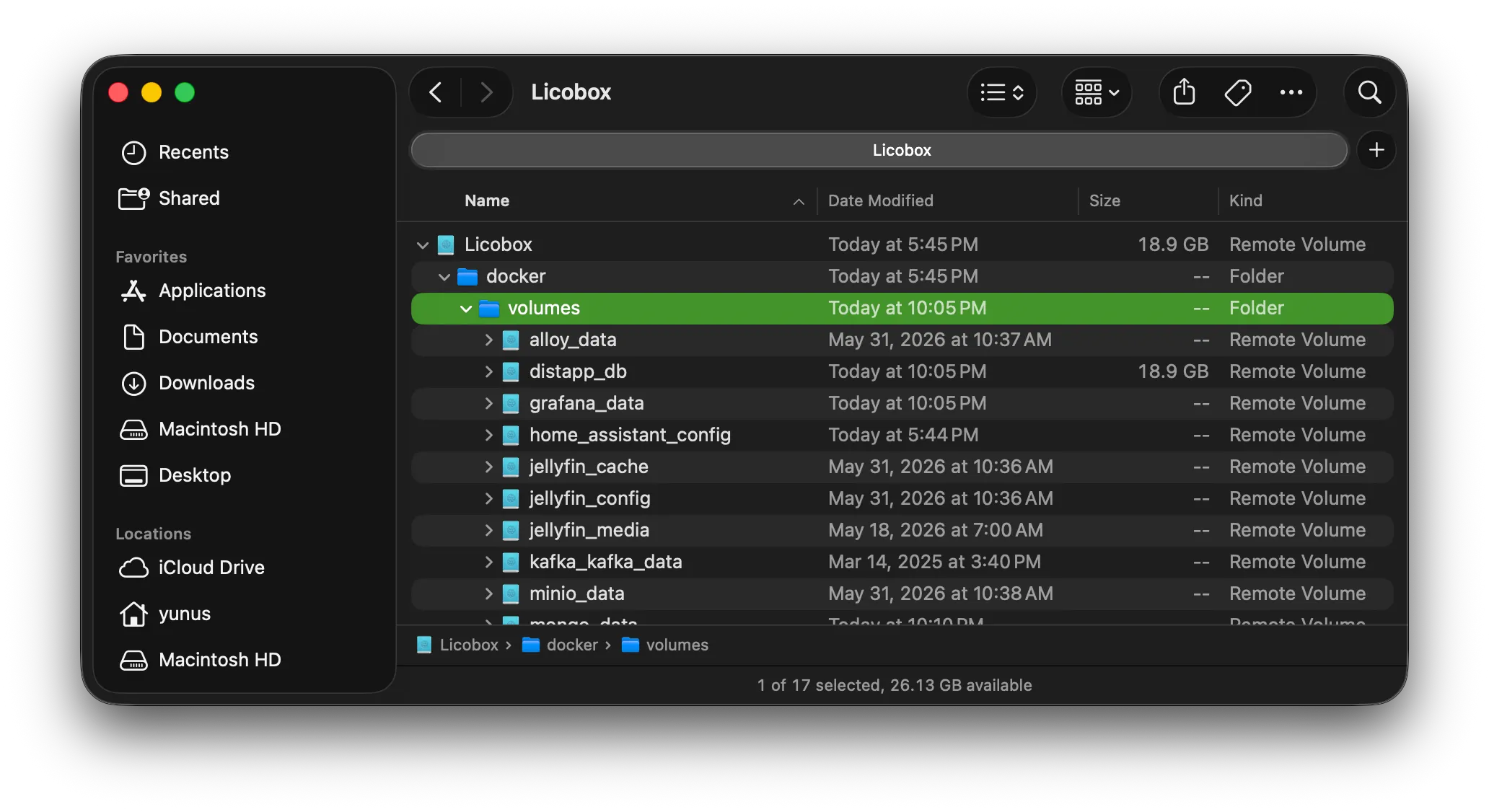
Licobox mounts Docker volumes as native macOS folders. You can open, copy, and edit volume files in Finder without entering the container.
Where volumes live
Section titled “Where volumes live”Every volume is a folder under your home directory. The full path is ~/Licobox/docker/volumes/<volume-name>.
DirectoryLicobox/
Directorydocker/
Directoryvolumes/
Directorynextcloud_data/
- …
Directorypostgres_data/
- …
Directoryredis_data/
- …
For example, a volume named nextcloud_data lives at ~/Licobox/docker/volumes/nextcloud_data.
Open a volume
Section titled “Open a volume”- Open
~/Licobox/docker/volumesin Finder. - Pick the volume folder. Each Docker volume is one folder.
- Drag it to the sidebar or Dock for one-click access later.
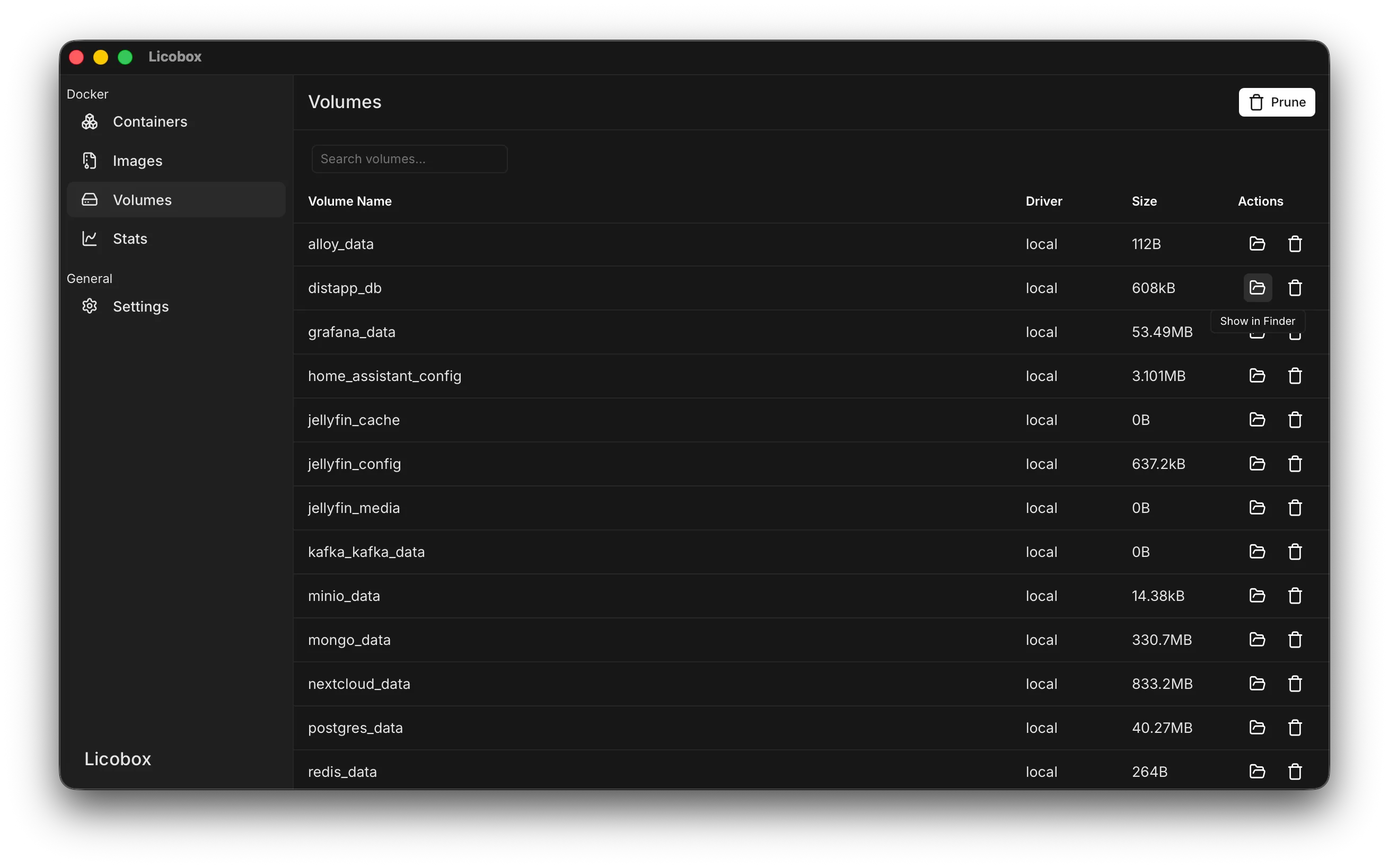
- Open the Volumes tab in Licobox.
- Find the volume you want to open.
- Click the folder icon in the Actions column.
Open the volumes root:
open ~/Licobox/docker/volumesOpen one volume directly:
open ~/Licobox/docker/volumes/nextcloud_dataEdit and copy files
Section titled “Edit and copy files”Volume files are regular macOS files. Open them in any app, copy files in and out, or back them up with Time Machine. Changes go straight to the Docker volume, so the container sees them on its next read.
Troubleshooting
Section titled “Troubleshooting”Volumes do not appear in Finder
Start licobox-helper and confirm it is running. Volume folders only appear after the helper mounts them.
A volume folder opens but shows no files
The volume may be empty, or the container may mount a subpath. List volumes with docker volume ls, then open ~/Licobox/docker/volumes/<volume-name> for the one you need.
Permission denied when editing a file
The file may be owned by a container user rather than your macOS user. Check the owner in Finder with Get Info, or change ownership from a container shell before editing.